• About
    • Archive of all the posts in my previous site
    • VMWorld / VMExplore

Tech Dad

  • Dual Authenticator Prompt in ZScaler Login After Switching from ADFS to Entra ID

    November 20th, 2025

    aka: “Why is MFA asking me the same question twice?!

    ZScaler is still new to us, and we’re still learning—but at least now we’ve conquered one of its many hidden boss fights.

    TL;DR
    If you’re switching ZScaler SSO from ADFS to Entra ID, update both ZPA and ZIA at the same time.
    Don’t stagger it. Don’t “come back later.”
    If one stays on ADFS and the other moves to Entra, the ZScaler Client logs into both simultaneously and will happily hit you with MFA twice, because why annoy you once when it can annoy you twice?

    During our POV phase with ZScaler, we kept things classic and used ADFS for SSO for both ZIA and ZPA. Life was simple. Then we moved to production and thought, “Hey, let’s modernize, let’s move to Entra ID!”

    The migration itself was pretty painless thanks to our PS engineer, Chris F, and ZScaler’s documentation, which was surprisingly actually correct (a rare moment of joy in IT). We tackled ZPA first, disabled all ADFS configurations related to it, and turned off the Relying Party Trusts in ADFS. Smooth sailing… or so we thought.


    The Problem? Dual MFA Prompt. Yes! TWICE.

    After the cutover, suddenly we were being hit with MFA two times in a row.
    Not once. Twice.

    For the record:

    • Once is security.
    • Twice is harassment.

    We figured maybe it needed time to replicate or catch its breath, so we gave it a day.
    Nope. Still double-MFA’ing like it was being paid per prompt.

    Meanwhile we had another go-live around the corner, so Ken, one of our Azure Engineers who helped set up Entra ID looked at me and said, “No, we’re fixing this first.”
    (You know it’s serious when someone cancels go-live prep.)


    What We Investigated

    Ken checked all the usual Entra ID suspects:

    1. Conditional Access conflicts
    2. Per-user MFA settings
    3. Application-level MFA
    4. Session token lifetimes
    5. Nested group inheritance weirdness

    Everything looked squeaky clean on the Entra side.


    I checked the ADFS side:

    1. ADFS logs
    2. ZPA Relying Party Trust (changed it, permitted all, even disabled it)
    3. Global MFA settings (we were using Azure MFA already)
    4. PowerShell commands
    5. Claims rules

    Also clean. No smoking gun.

    At this point, we were dangerously close to using the classic “Not us!” finger-pointing response that every IT team is secretly fluent in.


    The Breakthrough

    Then I did one thing—just one—almost out of curiosity:

    I disabled the ZIA Relying Party Trust in ADFS.

    Seconds later, Ken messages me:
    “I can’t log in. Did you change something?”

    Me: “Yes. I nuked the ZIA RP.”

    From there, the light bulb finally lit.
    We quickly configured ZIA to use Entra ID, just like we had already done for ZPA—and instantly the dual MFA prompts disappeared.


    Why This Happened

    The ZScaler Client authenticates ZPA and ZIA at the same time.
    ZPA was on Entra ID.
    ZIA was still clinging to ADFS like Windows XP in a hospital.

    So what happens when two identity providers collide?
    MFA × 2.
    The login equivalent of being asked for your ID after you already showed your ID.


    Lesson Learned

    • Switch BOTH ZPA and ZIA to the new identity provider—don’t stagger it.
    • ZScaler Client signs into both services simultaneously, so mismatched SSO = chaos.
    • Troubleshoot together. Don’t blame ADFS, Entra, ZScaler, the firewall, DNS, or the universe.
    • Share documentation—the more eyes, the faster you escape troubleshooting purgatory.
    • And above all: Expect the unexpected with SSO. It’s always the thing you don’t think about.

  • ZScaler: The Game Changer Making Healthcare Access Simple and Secure

    October 23rd, 2025

    You know those projects that make you think, “This is exciting… but wow, I really hope I don’t mess this up”? That was me when this one came my way.

    It wasn’t that I didn’t want it, I did! I love a good challenge. I just wanted to make sure I could handle it well. In healthcare, every second counts, and the technology behind the scenes has to perform flawlessly. When clinicians depend on what you build, “good enough” just isn’t good enough.

    That’s where this project came in and why it ended up being one of the most rewarding experiences I’ve had as an architect.


    The Challenge

    We had remote users who needed to access medical images securely and efficiently. The system we had technically worked, but it was overly complicated, the kind of setup that makes you wish you had an extra cup of coffee before logging in.

    Here was the old workflow:

    1. Log into a pod
    2. Log into Windows
    3. Launch VPN
    4. Check all USB devices
    5. Verify that all four monitors were functioning
    6. Make sure someone had logged into the image within the last 30 days (so it didn’t fall off the domain — yes, that was really a thing)
    7. And finally… start working

    Maintaining it was complex, troubleshooting it was painful, and explaining it to new users required patience and possibly a flowchart. We needed something simpler, faster, and more secure.


    The Research

    Like any determined IT person faced with a messy process, I started digging for a better way. After researching several options (and more than a few cups of coffee), an amazing friend and resource, Steve Lieberson, introduced me to ZScaler.

    Now, I’ll admit, I don’t come from a heavy security background, so ZScaler’s zero trust architecture felt a little foreign at first. But the more I learned, the more it clicked. This wasn’t just a new tool; it was a completely different approach to access and security.

    After reviewing case studies, mapping the design, and building a solid proof of concept, I presented it to management. They approved it, and that’s when things got interesting.


    The Execution

    Enter Frank Van Emburgh, the application expert who helped turn this plan into a success. I can build the infrastructure all day long, but when it comes to application configuration, Frank is the guy you want on your team. Together, we made it happen.

    Here’s what changed:

    Before:

    • Log into the pod
    • Log into Windows
    • Launch VPN
    • Check USB devices
    • Verify all four monitors
    • Make sure someone logs into the image within 30 days so it doesn’t fall off the domain
    • Finally, start working

    After:

    • Open ZScaler Private Access (ZPA)
    • Open your apps
    • Start working

    That’s it. Seriously.

    The difference was night and day. The physicians were thrilled, one even said, “Wait, that’s all I have to do now?” Coming from a workflow that used to take several steps and logins, that’s high praise.


    Why ZScaler Works

    ZScaler’s app segmentation is a game changer. Instead of giving users broad access to the network, it gives them only what they need, nothing more, nothing less. Imagine a physician connecting remotely: they see only access specific applications, and everything else stays invisible.

    Built on a zero trust architecture, ZScaler doesn’t assume any connection is safe. Every session is verified and authorized in real time. Unlike traditional VPNs, which can feel like opening the whole network door, ZScaler acts as a secure broker, users never actually reach your internal systems, and your apps remain hidden from the internet.

    And the protection goes deep:

    • Inline threat inspection: every session is scanned for malware or suspicious activity.
    • Micro-segmentation: even if someone gains access to one application, they can’t move sideways through the network.
    • Continuous trust assessment: ZScaler keeps evaluating device health, user behavior, and location, if something changes mid-session, access can be cut off instantly.
    • Data Loss Prevention: if someone accidentally tries to move sensitive data to an unauthorized place, ZScaler blocks it automatically.

    We also implemented ZScaler Digital Experience (ZDX) for full visibility across applications, devices, and network hops. Now, when a user experiences slowness, we can pinpoint exactly where the issue lies, no more “it’s the network” debates.


    The Outcome

    After a successful proof of concept, we went live, and the results have been fantastic. We replaced a traditional perimeter-based model with a modern, identity-based solution that follows the user wherever they go.

    The workflow is simpler, performance is faster, and security is stronger. Most importantly, the physicians can focus on their work without wrestling with logins and connections.


    Looking Back

    As someone who started out deep in infrastructure and grew into an architect role, this project reminded me why I love what I do. It pushed me to learn, grow, and think differently.

    I wasn’t afraid of the project itself, I just wanted to make sure I did it right. And that feeling, the mix of excitement and nerves is exactly what keeps me passionate about technology.

    Because when a project challenges you, it’s not a sign of doubt. It’s a sign that you’re about to level up.


    Key Takeaway:
    If a project makes you a little nervous, that’s a good thing. It means it’s worth doing.

  • Yes, vCenter 7 Goes EOL 10/2/2025. Yes, You Need to Upgrade Now

    September 29th, 2025

    Look, I know you’ve seen the https://knowledge.broadcom.com/external/article/372863 (Upgrade vCenter Server 7.0 to 8.0), but sometimes you just want a real human to walk you through it without the corporate jargon, right?

    So here we are.

    Before You Touch Anything:

    • Read the compatibility matrix (I know it’s boring, but do it anyway)
    • Test your login credentials for vCenter, VCSA, and ESXi, now’s not the time to discover you can’t remember your password
    • Confirm with your backup team that the last appliance backup actually succeeded
    • Log into VCSA and verify storage health
    • Check your certificates (covered in Step 3 below)

    The Upgrade Process:

    1. Take a snapshot
    You know why. Do it.

    2. Download the ISO
    Get the vCenter 8.0 installer from VMware.

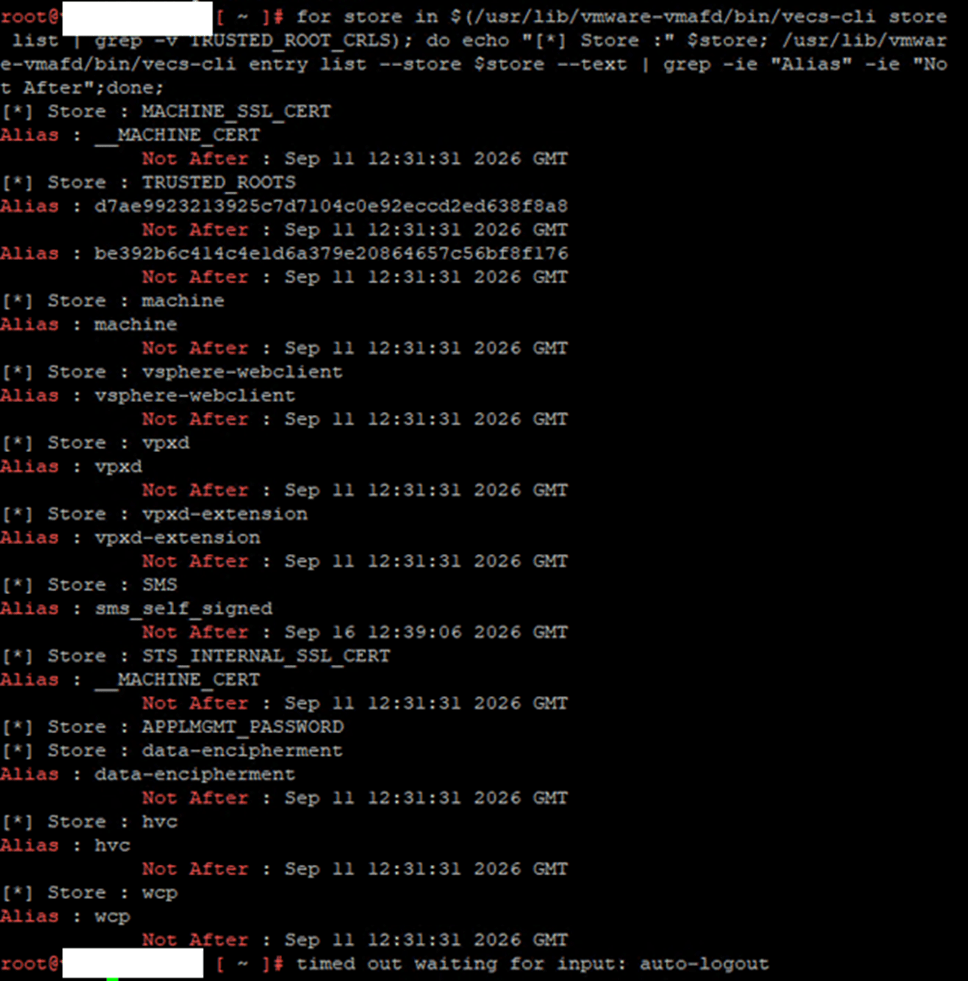
    3. Run certificate prechecks
    Make sure nothing’s expired or about to cause you grief mid-upgrade.

    for store in $(/usr/lib/vmware-vmafd/bin/vecs-cli store list | grep -v TRUSTED_ROOT_CRLS); do echo “[*] Store :” $store; /usr/lib/vmware-vmafd/bin/vecs-cli entry list –store $store –text | grep -ie “Alias” -ie “Not After”;done;

    4. Note your current vCenter host
    Document which ESXi host is currently running your vCenter appliance.

    5. Verify VCSA storage
    Check available disk space and storage health one more time.

    6. Mount the ISO and launch the installer
    Navigate to vcsa-ui-installer\win32 (assuming you’re on Windows).

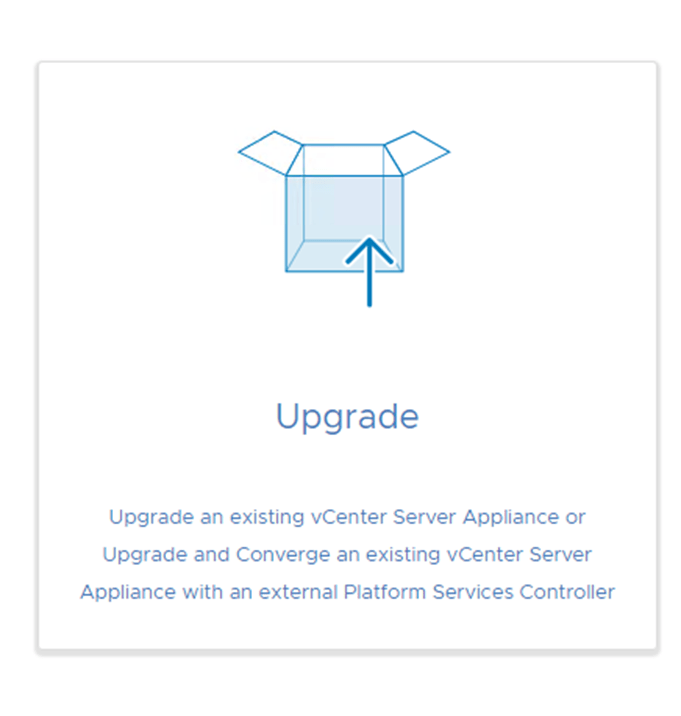
    7. Click “Upgrade” and follow the prompts

    • Enter your existing appliance details
    • Specify the target ESXi host for the new appliance
    • Configure network settings
    • Review everything carefully

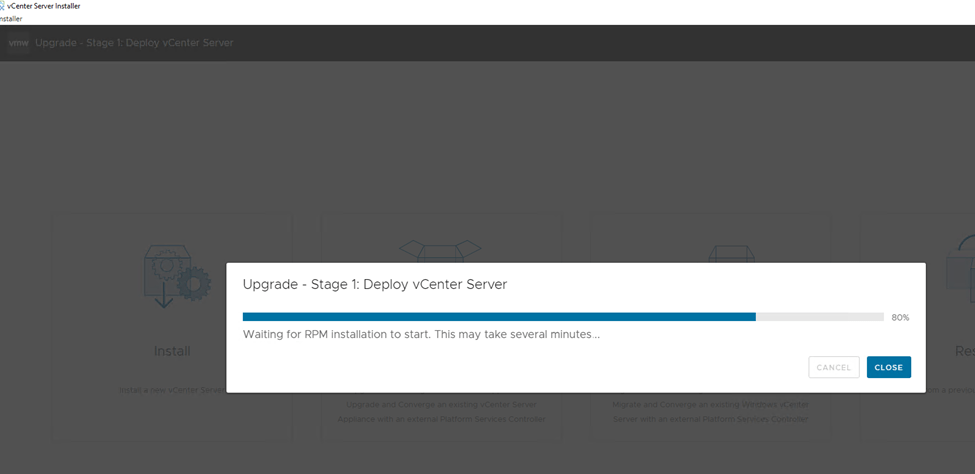
    8. Be patient during Stage 1
    This is where the new appliance deploys. Go grab coffee. Maybe a snack.

    9. Continue to Stage 2

    • The installer will run pre-upgrade checks
    • Select which data to migrate
    • Review your selections one last time

    10. Be patient again
    Stage 2 takes a while. This is normal. Don’t panic.

    11. You’re done!
    If everything completed successfully, congratulations, you’ve just saved yourself from running an unsupported vCenter environment.


    Pro tip: If something goes wrong, that snapshot you took in Step 1 is about to become your best friend or maybe that backup as a last resort

  • VxRail 7 to 8 Upgrade Adventures (a.k.a. “It Should Have Been Easy…”)

    September 9th, 2025

    So the day finally came: time to upgrade one of our VxRail clusters from 7 to 8. On paper, it looked simple. Run the pre-check, hit upgrade, sip coffee, and bask in the glory of being done before lunch.

    Spoiler: that didn’t happen.

    (And yes, we’re still on good ol’ vSphere. Don’t laugh. Hopefully one day soon, we’ll have a shiny VCF setup. I’m already daydreaming about VCF 9.1, where VMware promises the VxRail upgrade path will finally feel less like a haunted house tour.)


    The Plot Twist: vCenter Said “Nope”

    Everything looked good until the vCenter upgrade step:

    • GUI Error: Failed to upgrade VMware vCenter Server Appliance
    • CMD Error: Could not found system credential with name psc_root_

    Because of course, nothing screams “fun” like errors that sound like they were written by a cryptic fortune cookie.


    Meanwhile, In Appliance Land…

    Even though the upgrade bombed, I poked around on the new vCenter appliance anyway. Powered it on, ran through the wizard, got to the pre-check, and was greeted by another beautiful error.

    A quick search later, I stumbled across Broadcom KB 312122:
    vCenter Server preupgrade check error explained

    Followed their fix, went back to VxRail Manager, resumed the upgrade, and… miracle of miracles, it worked.


    My “Unofficial” VxRail 7 → 8 Upgrade Checklist

    1. History lesson – If someone else managed your environment before you, get the backstory. Ghost PSCs are real.
    2. Run your pre-checks – Don’t just trust the green check marks; actually read the details.
    3. VXverify – This one is critical. Run it. Love it. Respect it. Make sure to get the newest version – https://www.dell.com/support/kbdoc/en-us/000021527/vxrail-how-to-run-vxverify#downloadlatest
    4. Passwords – Double-check your account creds. Nothing like a forgotten password to turn an upgrade into a therapy session.

    Bonus Round

    • Reboots matter – If your hosts haven’t been rebooted in forever, give them some love. Same for the VxRail Manager appliance.
    • Dell ProSupport Plus – If you’ve got it and don’t feel 100% confident, open a ticket. No shame in phone-a-friend.
    • Local updates > Internet updates – Trust me, you’ll sleep better.

    Final Thoughts

    Upgrading VxRail should be “push button, drink coffee.”
    But in reality? It’s more like “push button, panic, Google error, find obscure KB, try again, finally succeed, then finally drink coffee.”

    And hey… maybe once VCF 9.1 lands, this process won’t feel like an escape room with bad lighting. One can dream.

  • A New Chapter for VCF: What VMware Explore 2025 Got Right

    September 2nd, 2025

    Stepping into VMware Explore 2025, I immediately felt it: the energy was back. The hum of conversation, the packed sessions, and the spontaneous whiteboard sessions in the hub weren’t just background noise, they were the pulse of a community reignited. After years of attending, this Explore felt like a true reset, a powerful reminder of why this conference matters.

    The Community Roars Back

    You can debate a lot of things, but you can’t deny the momentum: the VMware community is back. From hallway chats to the vCommunity sessions, engagement was everywhere. More people stepped up to share knowledge and collaborate, proving that even through transitions, the power of this community can’t be underestimated. This wasn’t just a conference; it was a homecoming.

    VCF 9: A Game-Changer for Everyone

    The general session showcased exactly why VCF 9 is a turning point. Instead of focusing only on massive, strategic customers, VMware showed how VCF can now empower smaller organizations. They demonstrated real-world use cases where companies could simplify management, modernize operations, and gain enterprise-grade resilience without the traditional barriers. It’s a clear signal that VMware is serious about meeting customers where they are a message that resonated deeply.

    A Shifting Landscape

    While the energy was high, there were a few noticeable shifts. The vendor presence felt more reserved this year. The expo floor, while active, wasn’t quite at the same scale as in the past. It’s clear the event is still finding its new rhythm. And of course, there’s the big change we’re all still adjusting to: EUC is off the roadmap. While it’s a visible shift, the hope is that the strategy evolves, and we see stronger clarity and representation in the future.

    The Power of vCommunity

    The vCommunity sessions were a highlight. They weren’t just well-attended; they were deeply interactive. These were collaborative exchanges where everyone contributed, not one-way talks. This spirit of knowledge-sharing is what has always set VMware’s ecosystem apart, and it was incredible to see it thriving again.

    Looking Ahead

    If VMware Explore 2024 left attendees with questions, Explore 2025 delivered clarity. The community is engaged, the technology roadmap is strong, and VCF 9 is set to broaden VMware’s reach. This year’s conference wasn’t just another event, it was a turning point. It was a powerful reminder that innovation is strongest when fueled by a vibrant, active community

  • Listening In: The Power of Absorbing Knowledge in Tech Troubleshooting Calls

    July 16th, 2025

    Ever been on a troubleshooting call where you’re mostly just listening in?

    Maybe you weren’t the lead, maybe the issue wasn’t in your direct wheelhouse, but you stayed on, curious. At first, it might feel like information overload. Acronyms are flying, logs are flying, and so are the tempers sometimes. But if you tune in and take notes, you’re doing more than just sitting silently, you’re investing in your future self.

    One thing I’ve learned: networking and virtualization go hand in hand. In many environments, the line between the two is blurred. Some people are rockstars in virtualization but struggle with networking. Others are network pros who don’t know where to begin with a hypervisor.

    Now imagine being solid in both. Not necessarily an expert, but competent enough to connect the dots. To troubleshoot effectively. To collaborate confidently. That kind of hybrid skill set makes you incredibly valuable.

    I don’t consider myself a networking expert, far from it. But over time, I’ve made it a point to understand the terminology, the flow, the dependencies. Not because someone told me to, but because I was curious and I saw the value.

    Those “listen-only” calls? They’ve helped me get there. Quietly, consistently.

    And here’s something I’ve also picked up: when there’s silence on the call, whether folks are waiting on logs or trying to figure something out, that’s a perfect time to break the ice and ask questions. Being curious might feel risky at times, but it’s almost always a good thing. It shows you’re invested, that you want to understand the environment, and that you care about more than just your own task list. Technology is always changing, and curiosity is how you stay in the game.

    Throughout my experience, I’ve been on all types of troubleshooting calls, from quick five-minute wins to grueling six-hour marathons. And even with 20 years in IT under my belt, I’m still hungry to learn more. Every call is a chance to sharpen your skills, gain perspective, and uncover something new about the systems we support.

    Let me share a quick story that really drove this home for me.

    I got called in to help troubleshoot an issue. I followed all the best practices, logical steps, documentation, collaboration with others. Everything pointed to a specific failure point, but we couldn’t fully resolve it. Eventually, we brought in someone who had been with the company for years. He didn’t just solve the problem, he explained why it was happening. There were historical settings and past architectural decisions at play that we hadn’t considered.

    That moment changed the way I viewed our infrastructure. I didn’t just learn about the problem, I learned the context. And with that understanding came new ideas: better design choices, different technologies we could leverage, and how to avoid similar pitfalls in the future.


    Final Thoughts

    Sometimes, the most valuable part of a call isn’t what you say, it’s what you absorb. And when you do speak up, even just to ask a question during a lull, it can open the door to learning, collaboration, and even innovation.

    Stay curious. Stay engaged. Even in the silence.

  • Why You Should Register for VMware Explore 2025

    May 27th, 2025

    Every year, VMware Explore keeps getting better, and 2025 is shaping up to be no exception. I’ve been attending this event since 2019, and every single time, I walk away with more connections, more technical insight, and more motivation to level up.

    Whether you’re deep into VMware’s ecosystem or just starting to explore what’s possible, this is the place to be. I still remember spending hours in “The Square,” meeting other tech pros from different industries, swapping real-world scenarios, and just learning from one another. It’s how I first got connected with VMUG and vExpert, and those relationships have truly shaped my career path.

    One of the biggest draws for me has always been the Expo. There’s something energizing about seeing what vendors are building, testing the next big thing, and chatting face-to-face with people behind the products. Oh! and if you’re competitive like me, the Odyssey challenges are a must.

    Explore 2025 Pricing Options are now live: Full Event, Essentials, and Meetings passes, there’s something for everyone depending on how you want to experience the week. Early bird pricing ends June 16, so don’t wait:
    Check out pricing here

    Looking to certify? Explore is also a great time to do it. You get discounted rates and, depending on the pass, even a complimentary voucher. Plus, who doesn’t want one of those shiny pins after passing?

    This year’s also a big one for product direction. Yes, the Broadcom transition had its growing pains, but it’s clear they’re listening now. As a longtime customer and the current leader of the Philadelphia VMUG, I’ve seen the shifts, and there’s real momentum. ESXi remains unmatched, and the future of the platform looks solid.

    As an architect, one of my personal goals was to explore alternative hypervisors. I recently attended the Nutanix conference and had the chance to see their roadmap up close, it’s clear the competition is evolving fast. That’s exactly why I’m excited to see what VMware by Broadcom brings to the table this year. With so many players stepping up, the innovation is only going to accelerate

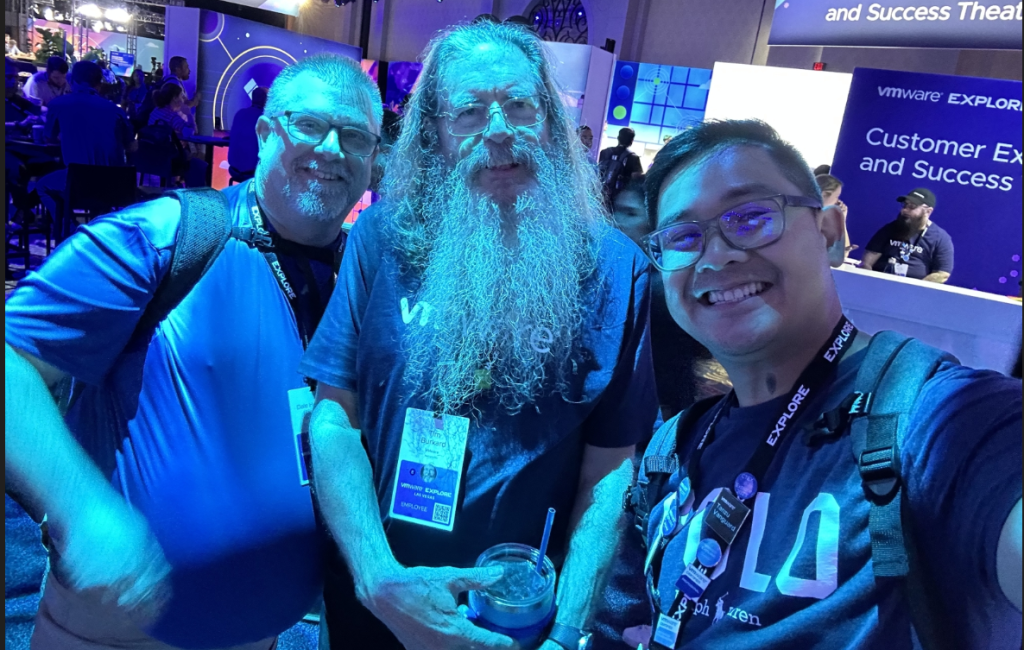
    One thing I always tell first-time attendees: reach out to someone you’ve only met virtually and plan to meet up. I’ve had the chance to meet folks I’ve worked with online for years, including execs, engineers, and even vGandalf! The energy of meeting in person just hits differently.

    PAT!

    Aria Expert Dale and vGandalf

    VCDX crew

    Hock!

    And of course, don’t miss the sessions. I’ll never forget the one where vSAN was first released, it completely reshaped how we approached infrastructure at my previous job. Lately, I’ve been all about the Aria sessions, the vision of automation and a unified interface is something every IT team dreams of. And of course the deployment of VCF!

    Finally, if you’re part of the community (or want to be), make time for the VMUG and vExpert events. These moments have helped me grow not just technically, but personally. In 2019, I went from being just a member to someone who wanted to give back—and I’ve been doing that ever since.

    If you’re thinking about going. Do it. Start planning now. Shoot a message to that VMware contact you’ve never met in person. Because Explore isn’t just a conference it’s where the community meets, learns, and builds the future together.

    Register now!

  • Trying Something New: My First Nutanix .NEXT Conference

    May 13th, 2025

    I just wrapped up my very first Nutanix .NEXT conference, and let me tell you, it was an eye-opener. As someone who’s been in the VMware ecosystem for years (attending VMworld, now VMware Explore, was a regular thing for me), this was my first major tech conference outside of that familiar orbit.

    Big shoutout to our awesome Nutanix rep, Lauren, for hooking me up with a free pass, really appreciate the opportunity.

    Right off the bat, one thing that stood out was the size and energy of the Solutions Expo. It felt bigger and more vendor-diverse than what I’ve seen at VMware Explore recently. I think a lot of that has to do with how much traction Nutanix has gained in the End User Computing (EUC) space. There’s clearly a strong ecosystem building around it.

    What made this experience even more unique was the fact that we’re not currently a Nutanix customer. We’re still in the research phase. That meant I didn’t have a “home base” going in! I was flying solo, which forced me to get out there and really connect. And honestly, that turned out to be one of the best parts. Sitting alone at sessions or meals often led to great conversations with folks I wouldn’t have met otherwise. That’s what I love about conferences: the organic networking.

    As for the keynotes and sessions, they didn’t disappoint. The content was sharp and future-looking. A few standouts for me:

    1. External Storage Integration with Pure Storage (NVMe over TCP) – Really intriguing, especially since we’re a big Pure shop.
    2. Design Architecture with Cisco, Pure, and UCS-X – Great synergy in this partnership.
    3. Omnissa Partnership – EUC and identity integration are clearly evolving fast.
    4. Nutanix Move Enhancements – The migration story is getting stronger.
    5. Cloud-native Deployments in AWS and Bare Metal – This shows real maturity in hybrid thinking.
    6. General Availability in Google Cloud – Huge step toward true multi-cloud support.

    It’s clear Nutanix is listening to both existing and potential customers, and shaping its roadmap accordingly. As someone who’s been hands-on with VMware technologies for years, I found it genuinely exciting to explore something new. The tech landscape is shifting, and it’s great to see competition pushing innovation forward.

    If I had a lab to myself, I’d honestly love to spin up a Nutanix cluster alongside our VMware setup just to get a feel for it in real-world conditions. I’m also seriously considering getting involved with the Nutanix User Group (NUG). This conference sparked something, it reminded me how important it is to stay curious, explore new tools, and meet people who challenge your thinking.

    Seeing how Nutanix is innovating alongside long-time industry leaders like VMware and Pure was refreshing. It’s clear that the future of IT infrastructure is becoming more dynamic, and that’s good for everyone.

  • SCCM Server Upgrade & SQL Split – What Actually Worked For Us

    April 11th, 2025

    We recently completed a successful upgrade of our SCCM environment, which was originally running on Windows Server 2016 with SQL installed on the same server as the SCCM application. If you’re planning to upgrade your SCCM infrastructure and separate the SQL component, this might be exactly what you need.

    I’ll give you the quick steps first, but if you want to avoid some pitfalls, definitely read the full story afterward.

    Quick Steps – SCCM Upgrade & SQL Separation

    This is what worked in our environment:

    1. Prep your new SQL Server – We used Windows Server 2022 and SQL Server 2022.
    2. Backup everything – Take backups of your SCCM DBs and snapshot your SCCM server.
    3. Upgrade SQL (if needed) – If your current SCCM server isn’t already running SQL 2022, do an in-place upgrade first. (We upgraded from SQL 2016 SP2 to 2022 SP3.)
    4. Validate SCCM functionality – After the SQL upgrade, confirm SCCM is still working properly.
    5. Get ready to split SQL from SCCM.
    6. Backup SCCM DBs again.
    7. Stop SQL Services on the SCCM server.
    8. Restore DBs on your new SQL Server. Our DBA also reindexed and set the compatibility level to 160.
    9. Run setup.exe /recover from the SCCM setup directory.
    10. During recovery, select the new SQL Server and the restored DB.
    11. After recovery completes, verify everything is functioning.
    12. Check site communication, DPs, and other components.
    13. Upgrade the OS – We upgraded the SCCM server OS from 2016 to 2022.
    14. Reconfigure WSUS post-upgrade (no need to uninstall it).
    15. Use this Microsoft link to follow any post-upgrade steps:
      Post-Upgrade Tasks
    16. Finally, run setup.exe again from the SCCM installer folder and select Repair.

    Bonus – Migrating WSUS from WID to SQL

    If you’re still using WID for WSUS and want to move to SQL, here’s what we did:

    1. Back up the SUSDB.
    2. Restore and reindex it on the new SQL Server.
    3. Update registry settings on the SCCM server using this guide:
      Migrate WSUS from WID to SQL

    The Story Behind the Scenes

    This upgrade was truly a team effort. I won’t take all the credit! Especially since the heavy lifting around SQL was handled by someone way better at that than me. Huge shoutout to Jeffrey B. for leading the SQL work, and to Gabe and Fred from our SCCM team for testing and tackling early errors. Steve helped prep the servers, and Doug T. was key in escalating our issues to Microsoft.

    So here’s what happened…

    Our old SCCM setup had SQL and SCCM on the same server, which we knew wasn’t ideal. There was little documentation from the past, so we decided it was time to clean things up and follow best practices. I was tasked with leading the upgrade and was already familiar with previous migrations, which helped. Luckily, this time we had only one site code, so the scope was manageable.

    Two weeks before our cutover, we reached out to Microsoft to validate our plan. They gave us the green light. Spoiler alert: things didn’t go as expected.

    Our original idea was to bring up a second SCCM App server and have it recover to the original DB while keeping both SCCM servers in play. Do not do this. It won’t work.

    We quickly found out that you can only have one primary site, and recovery must use the same FQDN as the original SCCM server. Thankfully, Microsoft routed our ticket to a real SCCM expert who clarified the correct recovery approach.

    When in doubt, it’s always smart to get a second opinion from a different engineer or tech. Every environment is a little different, and not all support engineers see things the same way. We also recommend leaning on multiple sources—Microsoft Docs, community forums, and tech peers—to validate your plan. You never know how your ticket will be routed, and sometimes it takes fresh eyes to spot what’s missing.

    Final Thoughts

    If you’re tackling a similar SCCM upgrade, I hope this helps you avoid some of the trial and error we went through. Stick to the recovery process using the same server name, plan your backups, and involve your DBA early.

    Since completing the upgrade, SCCM has been noticeably faster and more responsive, we’re calling it a win. Huge team effort all around, and the performance boost is the cherry on top.

    One thing to call out: we weren’t able to remove SSRS (Reporting Services) from the SCCM server. It’s still installed locally. We reached out to Microsoft but couldn’t get a clear answer on whether or how it could be safely removed. If you’ve successfully separated SSRS from your SCCM environment, definitely let us know, would love to learn how you did it.

  • Troubleshooting a Mysterious Windows Server Shutdown

    February 12th, 2025

    Hey everyone! It’s been a while since I last posted, but today, I had an troubleshooting experience that I just had to share.

    I logged into a Windows Server and was immediately met with an unexpected shutdown. Not the best way to start the day, right? But instead of panicking, I went into full detective mode to figure out what happened.

    Step 1: Check VMware vCenter

    Since this server runs on VMware, my first instinct was to check vCenter for any related tasks or events. Maybe the host had an issue, or someone triggered a restart? But nope—everything looked clean. That meant the shutdown was triggered from within the OS itself.

    Step 2: Investigate with Event Viewer

    Next stop: Event Viewer → System Logs.

    Now, if you’ve ever checked Event Viewer, you know it can be a jungle of logs. To make life easier, I filtered the logs using specific event IDs:

    • Event 41 – Unexpected shutdown or power failure → Nothing here.
    • Event 6006 – Clean shutdown (service stopped properly) → Nada in the last 24 hours.
    • Event 6008 – Improper shutdown (crash, unexpected reboot) → Nothing in the last 48 hours.
    • Event 1074 – User-initiated restart/shutdown → Aha! Found something!

    The Culprit: Patch Tuesday Strikes Again!

    Event 1074 revealed the answer:

    The computer was restarted to complete the installation of applications and software updates.

    Mystery solved! The server was part of Patch Tuesday and had been configured to force a reboot if needed after applying updates.

    Lesson Learned

    If you ever run into an unexpected reboot, always check Event Viewer and filter by these event IDs. It can save you a ton of time!

    Hope this helps someone out there. Have you ever been caught off guard by a surprise reboot? Let me know in the comments!

1 2
Next Page→

Blog at WordPress.com.


Loading Comments...
 

    • Subscribe Subscribed
      • Tech Dad
      • Already have a WordPress.com account? Log in now.
      • Tech Dad
      • Subscribe Subscribed
      • Sign up
      • Log in
      • Report this content
      • View site in Reader
      • Manage subscriptions
      • Collapse this bar